

Without an approved photo, your digital ID card will not activate in Atrium Campus Connect or Apple/Google Wallet.
Why Your Photo Matters
FMU uses ID photos to keep our campus community safe. Every photo is reviewed by Campus Safety before it’s approved — photos that don’t meet the requirements below are rejected and have to be re-uploaded, which slows down your access. Getting it right the first time means faster approval.
Photo Requirements (read this first)
✅ Do
- Clear, sharp, well-lit photo
- Face centered and fully visible
- Head & shoulders only (passport-style)
- Neutral background
- Professional, appropriate appearance
❌ Don’t
- Sunglasses or any eyewear
- Hats, hoods, or head coverings
- Hair covering eyes, nose, or mouth
- Hand gestures or objects in frame
- Blurry, dark, or filtered photos
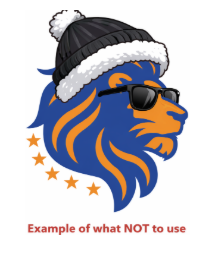
Photos that don’t meet these standards will be rejected by Campus Safety and must be re-uploaded.
How to Upload Your Photo
Follow these three steps, then wait for approval.
Go to the Atrium Upload Page
Visit the link below on your phone or computer and log in with your FMU university credentials.
Open Atrium Photo Upload →connectfmu.atriumcampus.com/photoupload.php
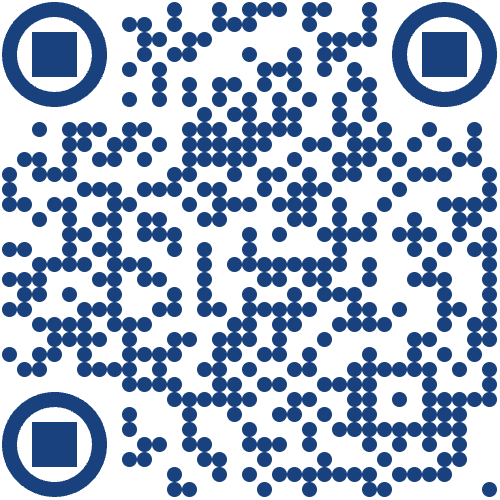
Scan this QR code to jump straight to the upload page.
Upload Your Government-Issued ID
Select your ID type from the dropdown, then choose your file and click Upload Government-Issued ID.
- Driver’s License
- State ID
- Passport / Visa
- Permanent Residence Card
Your file must be 5 MB (5000 KB) or less.
Upload Your Photo
On the next screen, upload a photo that meets the requirements above.
Wait for Approval
Campus Safety reviews submissions within 24–48 hours. You’ll get an email when your photo is approved or rejected, and you can always check your status by returning to the upload page and logging in.
Common Questions
My photo was rejected — what do I do?
Can I use a photo from my phone’s camera roll?
What ID types are accepted?
Is my ID kept on file?
I didn’t get an email — how do I check my status?
Still Stuck?
Submit a ticket with the IMT Help Desk, and we’ll take it from there.
24–48 Hour Review
Campus Safety reviews every submission and emails you when it’s approved or rejected.
Unlimited Resubmissions
Got a rejection? Fix the issue and re-upload using the same link — no limit on attempts.
Your ID Is Deleted
Your government ID is encrypted in transit and deleted from storage once your photo is reviewed.