
Online students
You will only have a Virtual ID inside the app. You will not have a Mobile ID in your phone wallet.
On-campus students
After uploading your photo, you can use the Virtual ID in the app, and you may also add a Mobile ID to your phone wallet for the cafeteria (Apple / Google / Samsung Wallet).
Before you can see your Virtual ID or Mobile ID, you must upload a photo of yourself.
For security and safety reasons, Mobile ID credentials can only be installed on one device at a time. Please read this carefully before adding your Mobile ID.
- Your NFC Mobile ID can be added to only one Apple or Android device.
- You cannot use the same Mobile ID on multiple phones or tablets.
- This rule applies to students, faculty, and staff.
If you lose, replace, reset, or get a new phone and no longer see your Mobile ID:
You must contact the CyberZone so we can remove the old device from the system. Once the old device is removed, you can register your Mobile ID on your new device.
Do not attempt to register a second device without contacting CyberZone first — the system will block it.
How to Set Up Your ID
Follow these five steps. The last step is for on-campus students only.
Install the Atrium Campus Connect app

iPhone (App Store)
- Open the App Store.
- Search “Atrium Campus Connect” or tap the link below.
- Tap Get, then install the app.
▶ Android (Google Play)
- Open Google Play.
- Search “Atrium Campus Connect” or tap the link below.
- Tap Install.
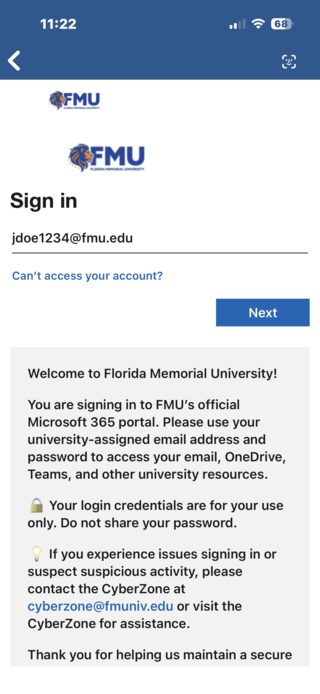
Open the app & sign in with your FMU account
- Find the Atrium Campus Connect app on your phone and tap to open it.
- Sign in with your FMU account.
- When prompted, enter your FMU email address (example: jdoe1234@fmu.edu).
- Enter your FMU password (the same one you use for your FMU account).
- Tap Sign In / Log In.
Upload your photo (mandatory)
Use the link below to upload your photo (step-by-step instructions are included there):

After you upload your photo:
- Close the app completely.
- Re-open the app.
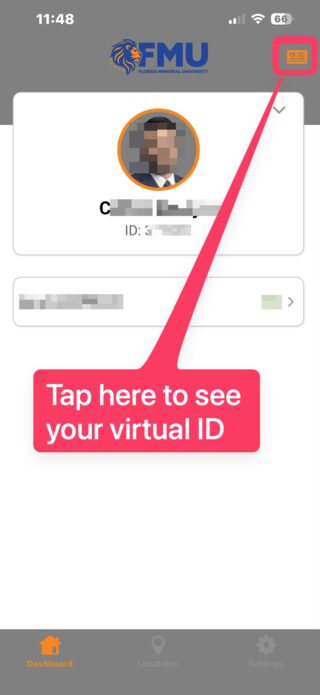
View your Virtual ID in the app
In the Atrium app, look for the small orange “Virtual ID” icon in the top-right corner of the screen. Tap it to display your Virtual ID.

Add the Mobile ID to your phone wallet
You will see an option like “Add to Wallet” or “Add Mobile ID”.
Online students will not see this option — Mobile ID is not available for online-only students.
On iPhone
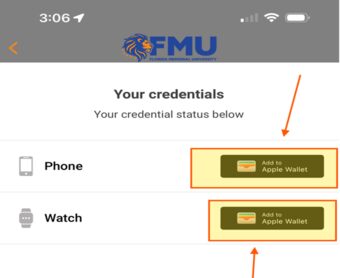
- Tap Add to Apple Wallet.
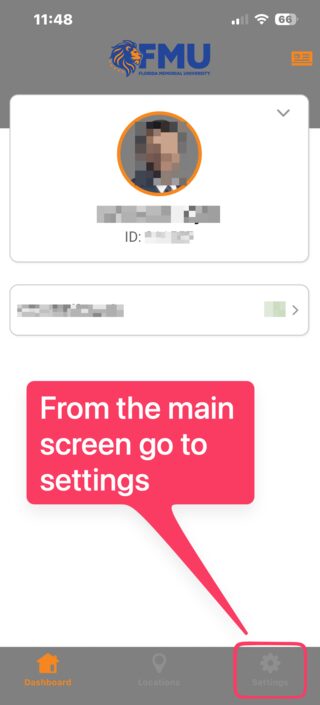
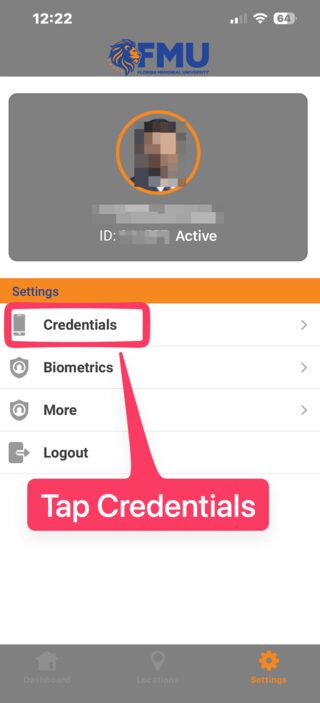
- Go to settings, tap credentials, then select Add to Apple Wallet.
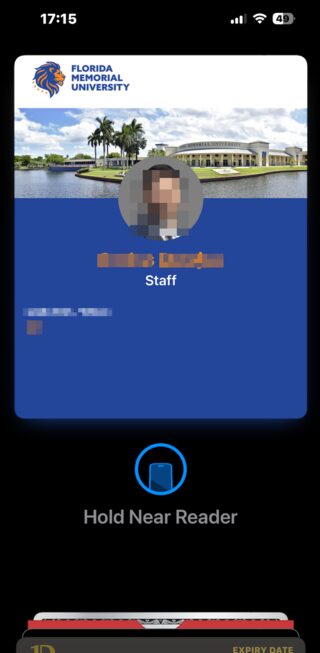
- When finished, open Apple Wallet and confirm the FMU Mobile ID is there.
▶ On Android
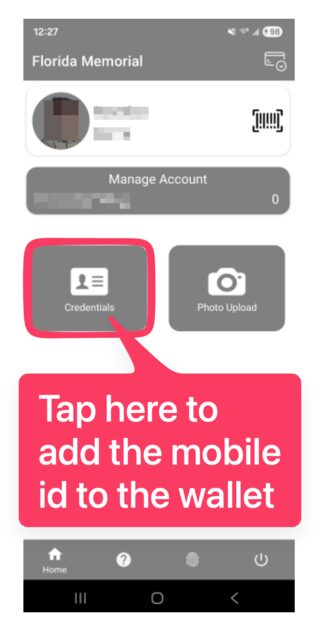
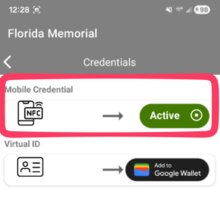
- Tap credentials, then select Add to Google Wallet under MOBILE CREDENTIAL.
- When finished, open Google Wallet and confirm the FMU Mobile ID is there.
- Make sure your photo was uploaded (required).
- Close the app and open it again.
- Make sure you signed in using your FMU email address and FMU password.
Need Help?
We're here to help if you get stuck!
One Device Rule
Your NFC Mobile ID can live on only one phone at a time. Change phones? Contact us first.
Photo Required
Upload a clear photo of yourself before your Virtual or Mobile ID will appear.