
To access your email and other services (Blackboard, Canvas, Microsoft Teams, etc.), you’ll need to log in to your Microsoft 365 account using your university credentials.
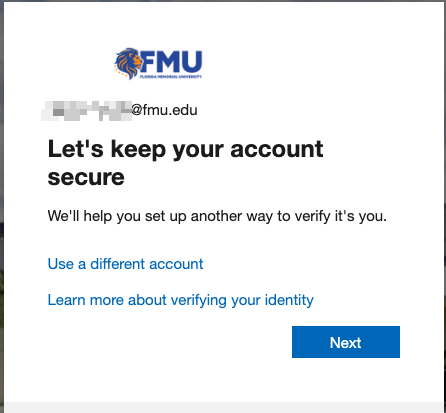
As part of our security policy, you must set up Multi-Factor Authentication (MFA) the first time you log in. This protects your account and ensures you can recover it if you forget your password later.
All email accounts have now been transitioned to the new domain only. If you previously had an email address ending in @FMUNIV.EDU, your account has been migrated to the new domain: @fmu.edu.
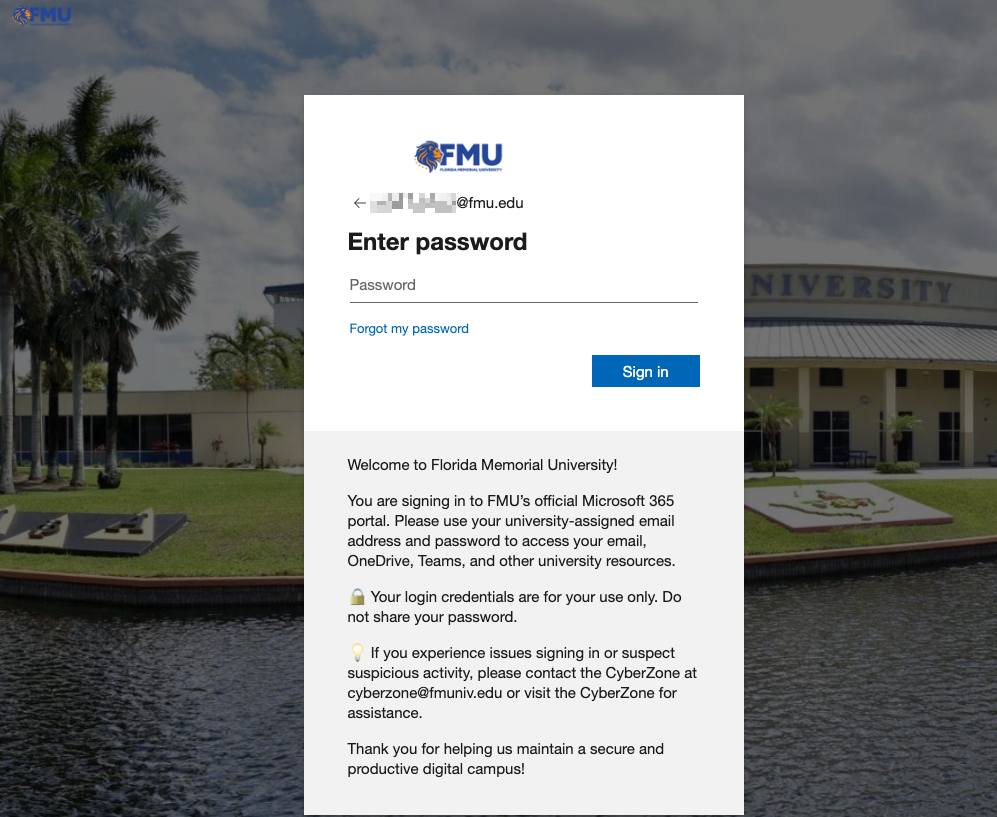
Security check: if you enter your email (username) correctly, the next screen prompting for your password will display the university’s official background — confirming you’re on the correct login page.
Account Protection
Helps protect your account against unauthorized access.
Required for SAML Login
Required for accessing student platforms via SAML login (e.g., Canvas, Blackboard, Webmail).
Password Recovery
Essential for future password resets and account recovery — keeps your information safe.
Step-by-Step: First Time Login & MFA Setup
Follow these four steps to secure your account.
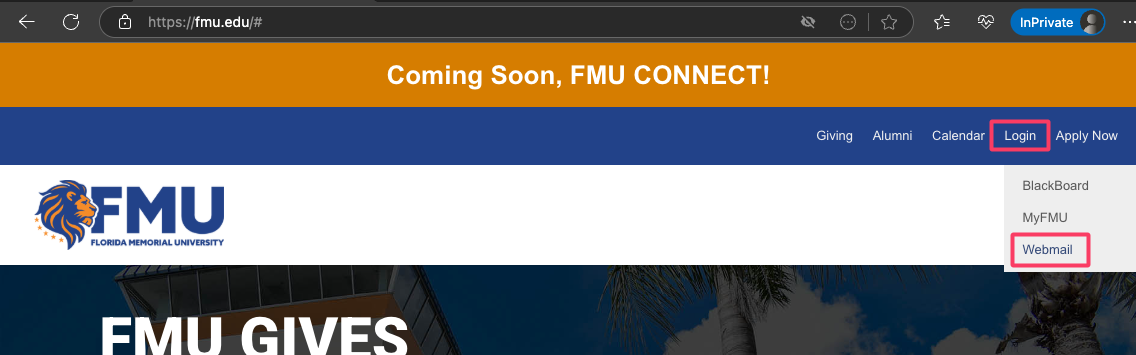
Go to the FMU Website
- Open your browser and go to www.fmu.edu.
- Hover your mouse over the “Login” button on the top menu.
- From the dropdown menu, click on “Webmail”.
Sign In with Your Student Email
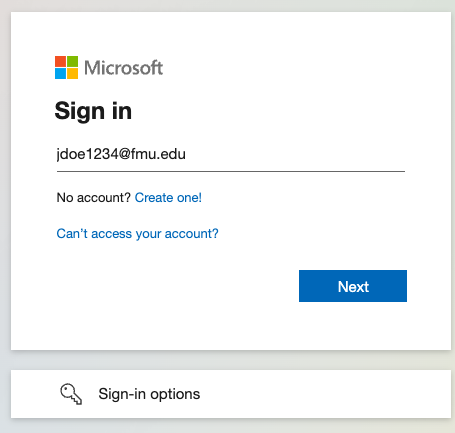
On the Microsoft sign-in screen:
- Enter your FMU email address: jdoe1234@fmu.edu (use your own).
- Click Next.
- Enter your password.
Set Up the Microsoft Authenticator App
If this is your first time logging in, you’ll be prompted to set up MFA. We strongly recommend using the Microsoft Authenticator app.
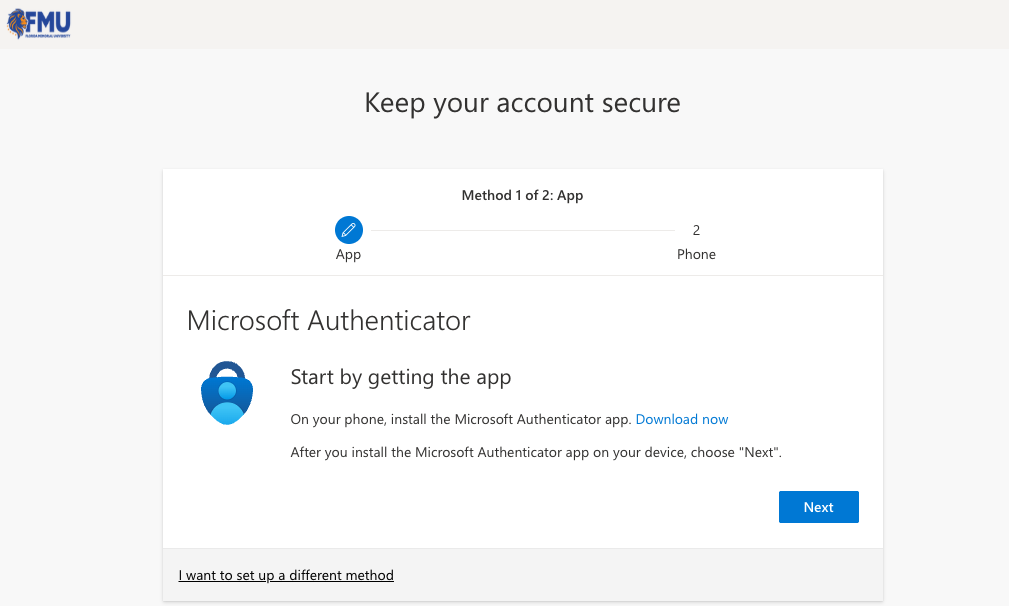
On Your Phone
- Download the Microsoft Authenticator app from the App Store or Google Play.
- Open the app and tap the “+” (plus) icon.
- Choose “Work or school account” > Scan QR code.
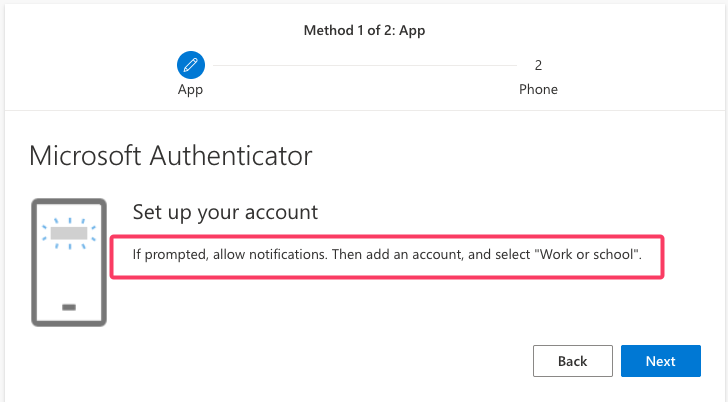
🖥 On Your Computer
- A QR code will appear on your screen. Use the app to scan it.
- Approve the test notification on your phone to finish the setup.
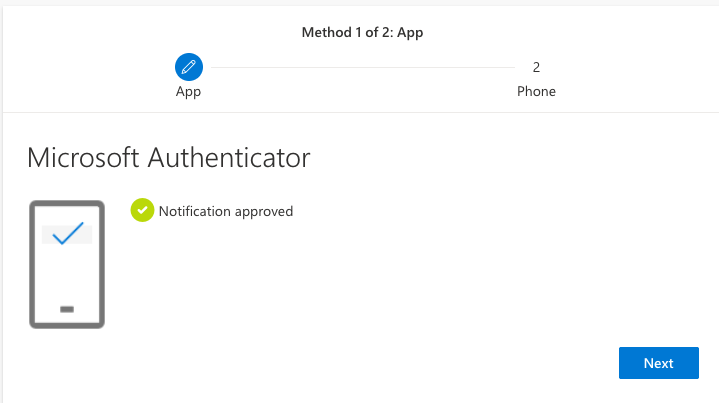
Once complete, your account will be secured with MFA.
Add Backup Authentication (Phone or Email)
To help you reset your password in the future, you should also add a phone number and/or an alternate email.
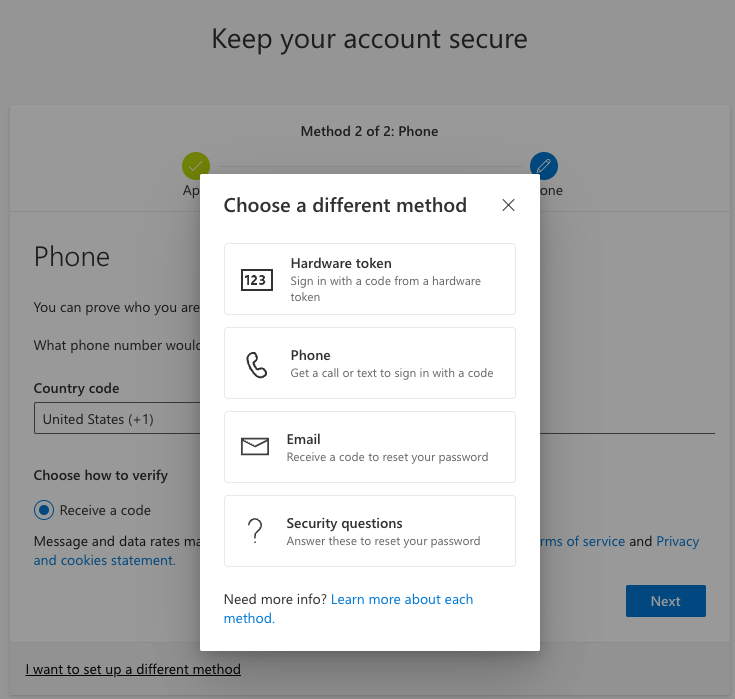
The next screen will request that you add a phone number. If you do not have a US phone, click on the link where it says “I want to set up a different method.”
- Select Phone or Email.
- Enter your number or alternate email.
- Verify the code to confirm.
- Keep your Authenticator app installed — it’s needed every time you log in from a new device.
- Use your personal mobile number and email — don’t use someone else’s contact info.
- If you lose your phone, contact the CyberZone immediately to recover your account.
Need Help?
We’re here to help if you get stuck!
MFA on First Login
Your first sign-in requires setting up Multi-Factor Authentication with the Microsoft Authenticator app.
Backup Method Required
Add a personal phone number and/or alternate email so you can always recover your account.