
How to Log In
Five quick steps to your student dashboard.
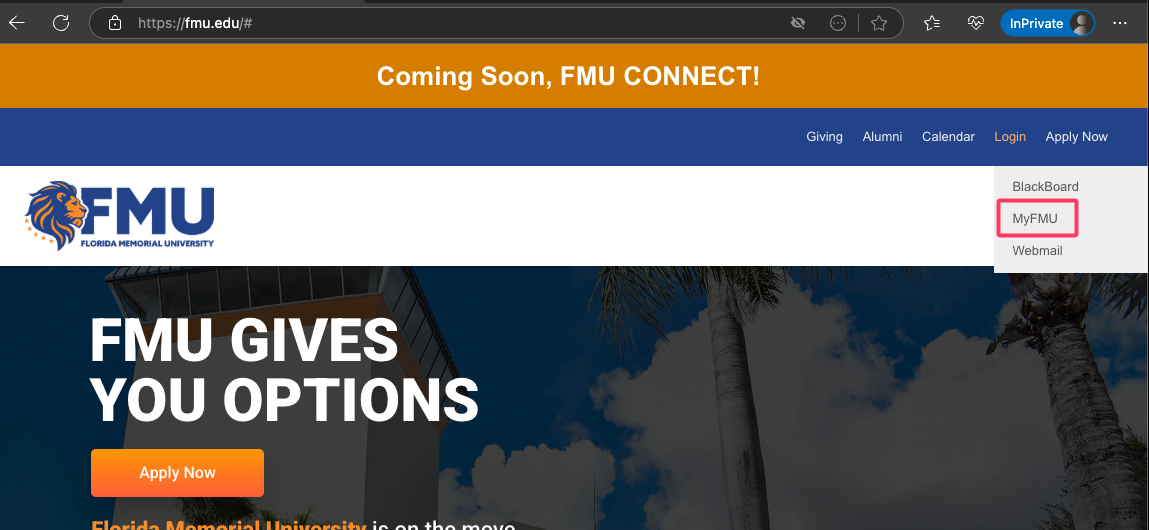
Click “Login” in the Top Menu
Move your mouse over the “Login” option at the top of the page. A drop-down menu will appear.
Click “MyFMU”
From the drop-down menu, click “MyFMU”. This will take you to the student portal login page.
Enter Your Username and Password
In the username field, enter the first part of your FMU email address, without the @fmu.edu.
Enter your FMU email password — the same password you use to check your FMU email or Microsoft 365.
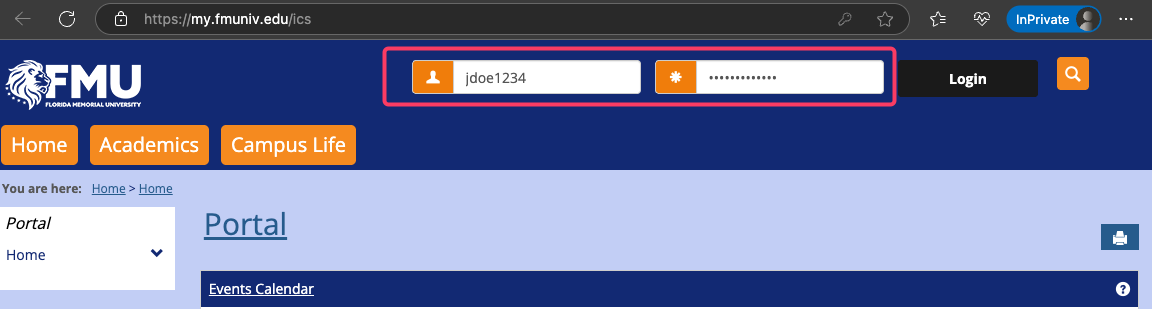
Click “Login”
Click the Login button to access your student dashboard.
If you’re having trouble logging in:
- Make sure your username is correct.
- Double-check your password (watch for Caps Lock / Num Lock).
- You can reset your password here: passwordreset.microsoftonline.com
Please don’t forget to add the following so we can assist you faster:
- A clear description of the issue
- Contact information, including your phone number, ID number, and full name
- Screenshots, if available, to help us better understand the problem
Still Need Help?
Contact the CyberZone and we’ll take it from there.
Username = Email Prefix
Use the first part of your FMU email — before the @fmu.edu.
Same Password as Email
Use the same password you use for your FMU email / Microsoft 365 account.